
Affiliate disclosure: As an Amazon Associate we earn from qualifying purchases. Links to Amazon in this post may earn us a commission at no extra cost to you. Learn more.
This guide is for anyone whose photos, documents or game library live on a single laptop or PC and who wants a cheap, roomy place to keep a copy. Spinning hard drives are slower than SSDs, but for backups and archives they still give you far more space per dollar. We have not tested any of the drives below. The details come from the manufacturers’ own spec sheets, and where a sheet is older or silent on something we say so.
What matters when buying
Portable or desktop. A portable drive is bus-powered over one USB cable and slips into a bag, which makes it handy for a laptop. A desktop drive uses a 3.5-inch mechanism and a wall adapter, which usually means more capacity for the money but a box that stays on your desk.
Capacity. Buy at least twice what you need to back up today, because files only grow. Remember that the listed size is a little larger than what your computer shows after formatting. Seagate’s datasheets note that some of the listed capacity is used for formatting and other functions.
The port and the cable. All three drives below use USB 3.0-class connections, with USB 3.2 Gen 1 on the WD, which is the same 5 Gbps speed under a newer name. Plug them into a matching port, ideally the blue or labeled SuperSpeed one, or you will drop to USB 2.0 speeds. Check what cable ships with the drive and whether it has the end your computer needs, since newer laptops often have only USB-C.
Formatting. Many drives ship formatted for Windows. WD’s leaflet says its My Passport comes formatted NTFS for Windows 10 and 8.1, and Seagate says a Mac may require reformatting. That is a two-minute job in Disk Utility, but it erases the drive, so do it before you copy anything over.
Encryption and software. If the drive holds anything private, hardware encryption with a password is worth having. Backup software is nice, but your operating system already includes backup tools, so do not pay extra for it.
What to ignore. Colors, rubber bumpers and vague shock-resistance language. Any spinning drive can be damaged if it is dropped while running.
Quick picks
WD My Passport. Suits laptop users who want encryption and a three-year warranty. WD’s leaflet lists 1TB, 2TB, 4TB and 5TB sizes, USB 3.2 Gen 1, built-in 256-bit AES hardware encryption with a password you set, bundled WD Backup and WD Discovery software, and a three-year limited warranty. The 4TB and 5TB versions measure 107.2 by 75 by 19.15 mm and weigh 210 grams, while the 1TB and 2TB versions are thinner and weigh 120 grams. The drawback is that it ships formatted for Windows and the encryption and software tie you to WD’s tools. Search for it on Amazon.
Seagate Portable Drive. Suits people who want a plain, bus-powered drive with no software. Seagate’s datasheet lists 1TB, 2TB, 4TB and 5TB, USB 3.0, a 128MB cache, and a size of 117 by 80 by 14.8 mm and 0.19 kg for 2TB and below or 20 mm thick and 0.26 kg for 4TB and above. It says there is no software to install and nothing to configure. The drawbacks: the datasheet lists an 18-inch cable, no bundled backup software or encryption, and a warranty that ranges from one to three years depending on the region. Search for it on Amazon.
Seagate Expansion Desktop. Suits a desk-bound PC or a home-office archive. Seagate’s datasheet for this model lists USB 3.0, a power adapter and a 4 ft USB 3.0 cable in the box, and a 176 by 120.6 by 36.6 mm body that weighs 0.95 kg. The sheet we found is an older one that lists 2TB to 5TB, so check the current listing for larger sizes. The drawback is the obvious one for a desktop drive: it needs wall power and is not something you carry around. Search for it on Amazon.
We did not rely on hands-on reviews for these three. They are shortlisted from manufacturer data and should be checked against current reviews before you buy.
Common mistakes
The biggest mistake is treating one external drive as a backup. A single copy on a single disk is one failure away from nothing, so the usual advice is three copies, on two kinds of storage, with one off-site. The second is buying a hard drive for something that needs speed, such as editing video directly from the drive or loading games; an SSD is the better tool, as we explain in our portable SSD buying guide. The third is plugging into a slow USB port, and the fourth is forgetting to eject the drive before unplugging it. If several people or devices need the same files, a 2-bay NAS may suit you better than a single USB drive.
Bottom Line
For a laptop, the WD My Passport adds encryption and a longer warranty on paper, while the Seagate Portable Drive keeps things simple. For a desktop that stays put, the Seagate Expansion Desktop trades portability for wall power. Whichever you pick, set up automatic backups and keep a second copy somewhere else.
FAQ
Is a hard drive or an SSD better for backups?
For bulk backups and archives, a hard drive gives you more space for less money. For speed and for carrying around, an SSD is better. Many people use a hard drive for the archive and an SSD for working files.
Do I need to format a new external drive for a Mac?
Often yes. WD says its My Passport ships formatted NTFS for Windows, and Seagate notes a Mac may require reformatting. Reformat before you add any files, because the process erases the drive.
How long do external hard drives last?
There is no guaranteed lifespan. Warranties on these models run from one to three years depending on model and region, and drives can fail at any time, which is why a second copy of important files matters.
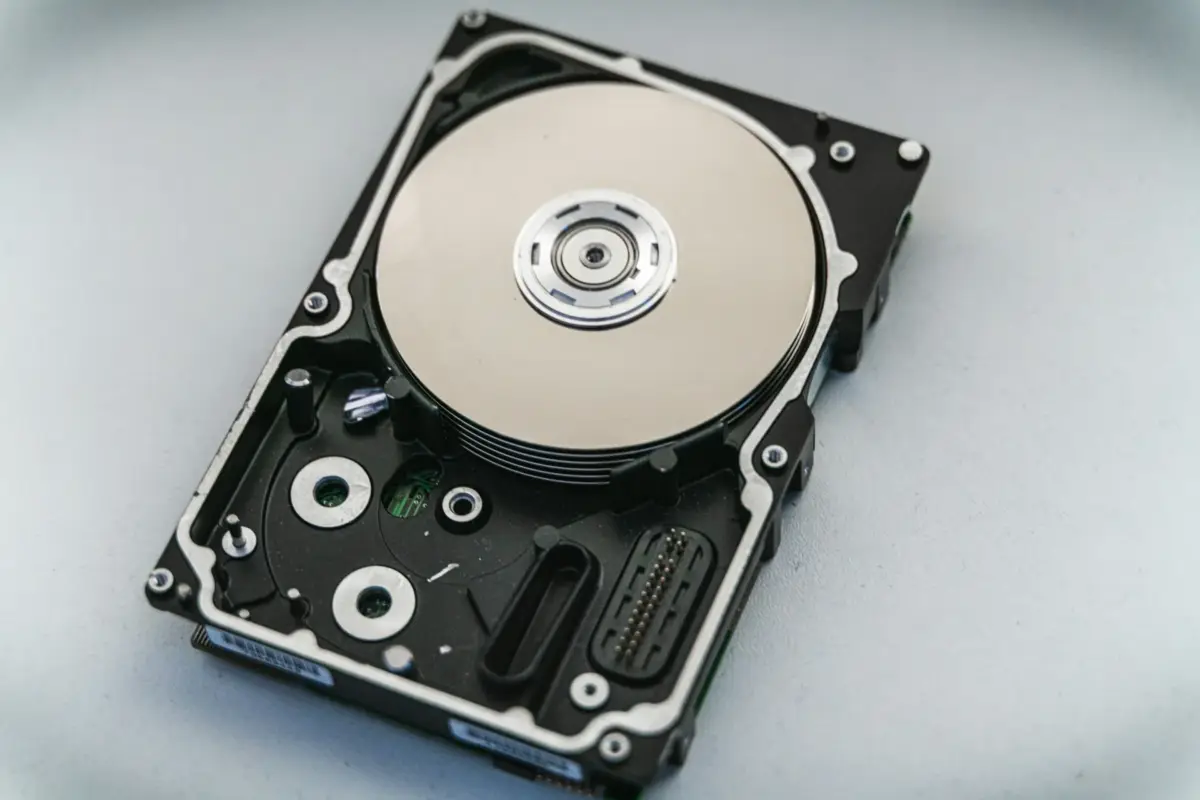
Featured image: Photo by Nick on Unsplash (generic stock photo of a hard disk drive).

No comments yet. Be the first to share your thoughts below.