
Affiliate disclosure: As an Amazon Associate we earn from qualifying purchases. Links to Amazon in this post may earn us a commission at no extra cost to you. Learn more.
This guide is for anyone whose laptop has two ports and a long list of things to plug in: a monitor, a keyboard, a card reader, maybe an Ethernet cable at the office. A USB-C hub fixes that, but the box labels are written to impress, not to inform. Below is what the specs mean, what to ignore, and four hubs that Engadget recommends. A note on method: nobody here tested these. Everything below is based on manufacturer specs and published reviews, and we name the source for each claim.
What matters when buying
Video output. If you plan to drive an external monitor, check the HDMI version. Engadget points out that HDMI 2.0 is needed for 4K at 60Hz, since HDMI 1.4 tops out at 30Hz. A 30Hz desktop looks sluggish, with a cursor that visibly trails your hand, so this is the spec most worth reading twice.
Pass-through charging. Most hubs take power in through a USB-C port and send some of it to your laptop. Engadget’s table lists both numbers, for example 100W in and 90W delivered to the host on one model. Compare that against your laptop charger. A thin ultrabook is fine with less, a powerful laptop may charge slowly or not at all while it works. Engadget also found that powered hubs ran hotter, and its advice is to charge the laptop directly when you can. One more catch from the same piece: a laptop with its lid closed and an external monitor attached needs power, or it may go to sleep.
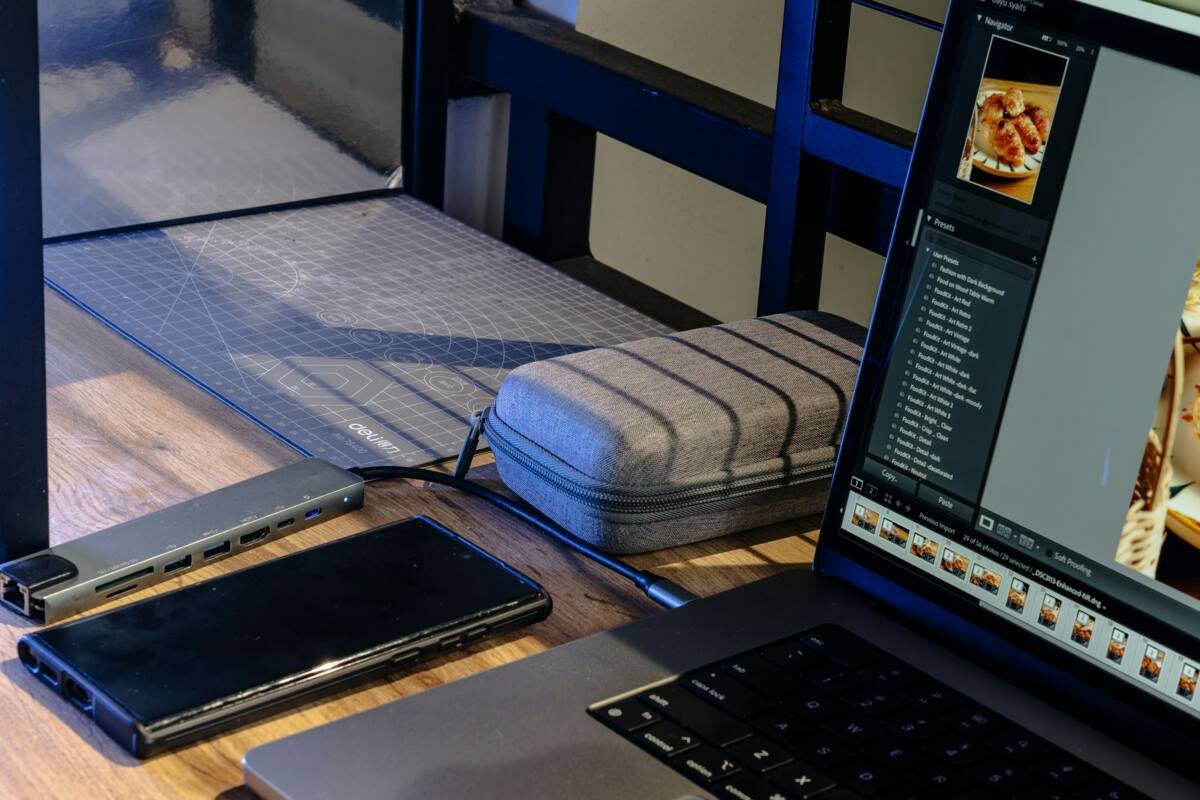
Usable ports, not port counts. Engadget warns that a hub may call itself “7-in-1” while one of those ports cannot carry data. Count the ports you will actually use: USB-A for older accessories, USB-C for newer drives, an SD slot if you shoot photos, Ethernet if Wi-Fi is unreliable. Also look at port speeds. A drive plugged into a 5Gbps port will not run as fast as it would on a 10Gbps one, which matters if you carry a portable SSD.
Hub or dock? Engadget describes hubs as having roughly four to ten ports with pass-through charging, while docks have more ports, usually need their own power adapter and can cost far more. If you only need a handful of ports at a desk or in a bag, a hub is enough.
What to ignore. The “in-1” number on the box, and flashy marketing speeds that depend on your laptop supporting them. Cable length is a better thing to care about: a 6-inch cable keeps things tidy on a laptop edge, while a 20-inch cable reaches around a stand.
Quick picks
These four come from Engadget’s current USB-C hub roundup. They are not ranked here, and availability varies, so check the listing before you buy. The specs below are as published by Engadget.
UGREEN Revodok Pro 109
Who it suits: People who want one hub to do everything at a desk, from a monitor to a card reader to a wired network.
Engadget picked it as best overall. Strengths: eight downstream ports including three USB-A (two at 5Gbps and one at 10Gbps), microSD and SD slots, Ethernet and HDMI 2.0 with 4K at 60Hz, plus 90W of charging delivered to the host from a 100W input and a 10-inch cable. Drawback: Engadget notes it has only one usable downstream USB-C port. Find the UGREEN Revodok Pro 109 on Amazon.
Wavlink USB-C 4K@60Hz hub
Who it suits: Anyone who just needs a monitor output and a couple of ports without spending much.
Engadget’s best budget pick. Strengths: a slim design, HDMI 2.0 at 4K 60Hz, a 10Gbps USB-C port and a 10Gbps USB-A port, and 85W of pass-through to the host from a 100W input. Drawback: only one downstream USB-C port, and there is no SD slot or Ethernet. Find the Wavlink hub on Amazon.
EZQuest Slim Gen 2
Who it suits: Owners of newer gear who have mostly USB-C accessories and need more of those ports.
Engadget calls it the one with the most USB-C ports. Strengths: four USB-C ports at 10Gbps plus a fifth that carries video, a detachable 20-inch cable, and 80W of charging to the host from a 100W input. Drawback: no USB-A, HDMI, SD or Ethernet, so older accessories need adapters, and video goes out over USB-C only. Find the EZQuest Slim Gen 2 on Amazon.
Satechi OntheGo 7-in-1
Who it suits: Travelers who want a compact hub that sits on the back of a laptop.
Engadget lists it as an honorable mention. Strengths: HDMI 2.0, two USB-A ports at 5Gbps, microSD and SD slots, Ethernet, and a MagSafe attachment on a compact body with a 6-inch cable. Drawback: Engadget says it is not meant for heavy accessory use or fast data transfers, and its one USB-C port is power-only. Find the Satechi OntheGo on Amazon.
Common mistakes
The biggest mistake is buying on port count. Eight ports mean little if you need two USB-C and the hub has one. Another is ignoring HDMI version, which leaves you with a 30Hz screen. People also forget the wattage of their laptop charger and end up with a hub that cannot keep their machine charged under load. And plugging a fast drive into a slow port is a quiet way to waste money.
If you work at a desk most days, a laptop stand and a hub together make for a cleaner setup, and for trips our travel charger guide covers the power side.
Bottom Line
Start with the ports you use, then check the HDMI version and charging wattage. For one hub that does it all at a desk, Engadget’s best overall pick, the UGREEN Revodok Pro 109, is where to look first. If you want a cheaper monitor-and-a-few-ports option, the Wavlink is the budget pick, and the EZQuest suits a USB-C-only life. Once your desk is full of devices, a good surge protector is worth a look too.
FAQ
Do I need HDMI 2.0 on a USB-C hub?
If you want 4K at 60Hz, yes. Engadget notes HDMI 1.4 tops out at 30Hz at that resolution. For a 1080p monitor, either version is usually fine.
Will a hub charge my laptop?
Most hubs with a power input will pass charging through, but they keep some of it back. Check the wattage delivered to the host against what your laptop’s own charger provides. Engadget also suggests charging the laptop directly where possible, because powered hubs got warm.
What is the difference between a hub and a dock?
According to Engadget, hubs are smaller and cheaper with roughly four to ten ports, while docks have more ports, usually need a separate power adapter and cost more. Most people need only a hub.
Featured image: Photo by Barry A on Unsplash.

No comments yet. Be the first to share your thoughts below.