
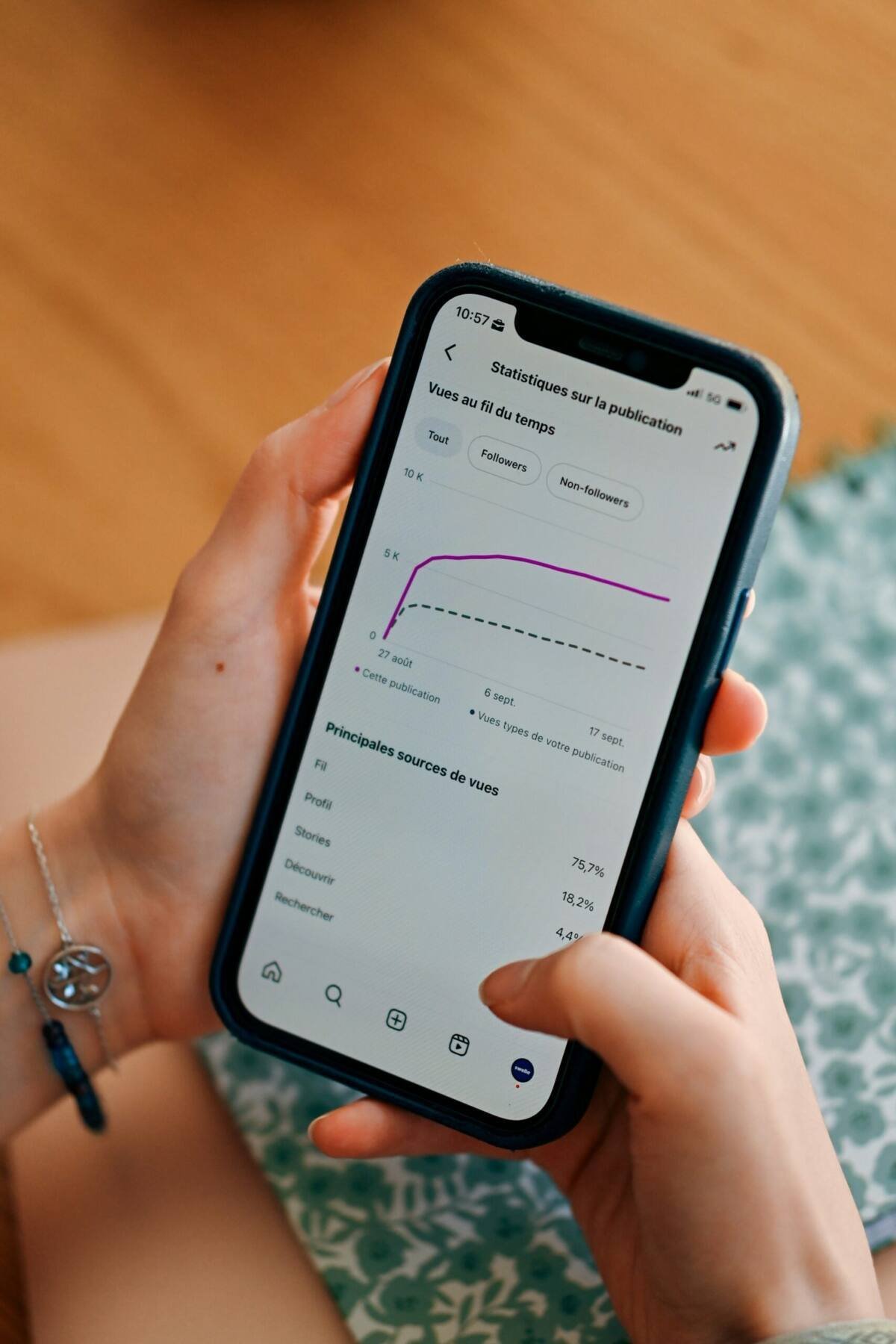
Ever browsed a pair of sneakers on some random website, opened Instagram five minutes later, and seen an ad for those exact sneakers? It feels like Instagram is listening in. It isn’t — Meta has repeatedly said it doesn’t use your microphone to eavesdrop on conversations for ad targeting. What’s actually happening is quieter and, in some ways, more unsettling: retailers, apps, and other businesses are quietly sharing your activity with Meta, and Meta is stitching it together with everything you do inside Instagram itself — plus, now, your conversations with Meta AI — to build a frighteningly accurate picture of you.
There’s no single “stop tracking me” switch buried in the settings menu. Instead, Instagram’s data collection comes from several separate pipelines: your in-app behavior, your device and network signals, data other businesses hand over, your connected accounts, and — as of a 2025 policy shift — your chats with Meta AI. If you actually want to cut down on how much Instagram knows (and how it uses that knowledge to sell you things), you need to go through each of these one at a time. Here’s how.

1. Turn Off Personalization From Other Businesses
In mid-2026, Meta began rolling out a new control called Activity from other businesses, replacing the older “Your activity off Meta technologies” setting and folding in what used to be called “Activity information from ad partners.” This is the switch that governs whether third-party businesses — the ones already sending Meta data about your purchases, page visits, and app usage — get to use that data to personalize your ads, your Feed, and even Meta AI’s responses to you.
Where to find it:
- Open Instagram → tap your profile → open the three-line menu
- Go to Accounts Center
- Look for Activity from other businesses
- If you don’t see it yet (Meta is rolling it out gradually by country), check Ad preferences → Ad settings → Activity information from ad partners instead
- Select the option that turns off personalization from this activity
The catch: this only blocks Meta from using activity that happens outside Instagram. It won’t stop ads from reflecting the accounts you follow, the Reels you like, your on-platform searches, or advertiser customer lists that already include you. If you’re in the EU, you get an extra lever — a “less personalized ads” toggle under Ad Experience — but Meta says even that mode still factors in your age, location, device details, and what’s on your screen during that session.
2. Lock Down Instagram’s Access on Your Phone
Your phone’s own privacy settings are a second, independent layer worth checking.
On iPhone: Go to Settings → Privacy & Security → Tracking and switch Instagram off. This uses Apple’s App Tracking Transparency system to block Instagram from tracking you across other companies’ apps and sites for advertising purposes. Worth noting: it doesn’t touch anything Instagram collects inside its own app.
On Android: Head to Settings → Apps → Instagram → Permissions and review location, contacts, camera, and microphone access. Deny anything you don’t actually need the app to use. Turning off location access removes one obvious tracking source, but Meta can still make a reasonable guess at your whereabouts from your IP address and other device signals.
Don’t skip contact syncing. Go to Accounts Center → Your information and permissions → Upload contacts, pick your Instagram account, and switch off Connect contacts on every device you use. This stops future syncing — it won’t erase contacts already uploaded. For that, use Manage contacts on Instagram.com, and be patient: Meta says removal can take up to 90 days.
One more thing tucked in Accounts Center: Meta uses activity across every account linked there (Instagram, Facebook, etc.) to personalize ads and suggest people to follow. You can remove an account from Accounts Center, but note it may break shared logins, and it won’t delete the account or its data.
3. Rein In What Meta AI Remembers About You
This is the part most people don’t know about yet. Since December 2025, Meta has used your interactions with its AI chat features as a signal for content and ad personalization in most regions. Ask Meta AI for hiking trail tips a few times, and don’t be shocked if hiking gear ads start showing up. There’s currently no dedicated setting that lets you keep using Meta AI while excluding those chats from personalization.
What you do have are two cleanup commands, typed directly into an Instagram AI chat:
- /reset-ai — deletes that specific AI conversation and whatever details it saved from it
- /reset-all-ais — wipes every saved AI chat in the app
Two important caveats: your chat still shows up in your message history until you delete it separately, and these commands are memory-wipers, not opt-outs. They don’t stop Meta from using the conversation for ad targeting going forward or from folding public posts and AI interactions into model training. If you’re in the EU or UK, you can formally object to that training use through Meta’s Privacy Center — a right that, notably, isn’t available everywhere.
The Bottom Line
There’s no way to fully “turn off” Instagram’s data collection short of deleting the account. But between the Activity from other businesses setting, your phone’s app permissions, contact-sync controls, and the AI reset commands, you can meaningfully shrink what Meta has to work with — and get a much clearer picture of exactly what it’s tracking and why.
A good rule of thumb going forward: treat anything you type into a Meta AI chat like a public post. Skip the names, addresses, financial details, and medical information, run /reset-ai when you’re done with a sensitive conversation, and revisit these settings every few months — Meta has a habit of quietly renaming and reshuffling them.